

How to Check the Health of Your WordPress Website
A WordPress website is never truly “finished”. Themes, plugins, security standards and search engine requirements are constantly evolving. Without regular maintenance, even a well-built website can become vulnerable, slow or difficult to manage.
Whether you run a small business website, an online store or a blog, regularly checking the health of your WordPress website can help you identify issues before they become costly problems.
In this guide, we’ll walk through some of the most important areas to review and explain how you can keep your website secure, reliable and performing at its best.
Why Website Health Matters
Many website owners only discover problems when something breaks.
Common issues include:
- Outdated plugins and themes
- Security vulnerabilities
- Slow loading pages
- Poor search engine visibility
- Missing backups
- Plugin conflicts
- Unsupported PHP versions
These problems can affect user experience, search rankings and website security.
Regular health checks allow you to identify and address issues before they impact your visitors or your business.
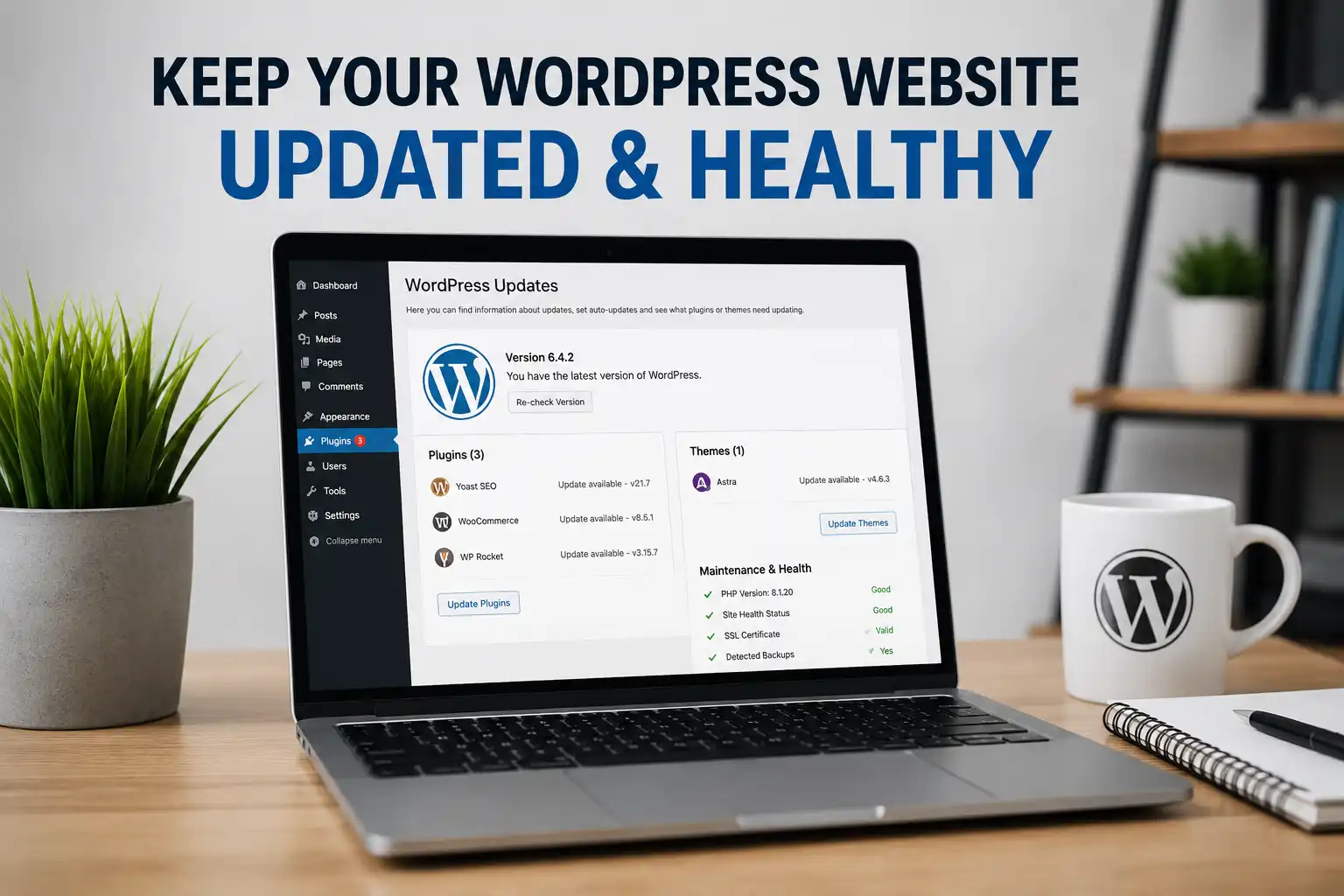
Check Your WordPress Version
WordPress is updated regularly to improve security, stability and functionality.
Running an outdated version can leave your website exposed to known vulnerabilities.
To check your version:
- Log into WordPress.
- Navigate to Dashboard > Updates.
- Review any available WordPress core updates.
Before updating, always ensure you have a recent backup available.
Review Your Plugins and Themes
Plugins and themes require ongoing maintenance.
Check for:
- Available updates
- Unused plugins
- Inactive plugins
- Plugins that duplicate functionality
- Unsupported or abandoned plugins
Many websites accumulate plugins over time, which can create unnecessary complexity and increase security risks.
A leaner website is often easier to maintain and performs better.
Check Your PHP Version
PHP is the programming language that powers WordPress.
Running an outdated PHP version can:
- Reduce website performance
- Create compatibility issues
- Introduce security risks
Most modern WordPress websites should be running a supported PHP version recommended by WordPress.
Your hosting provider can usually assist with upgrades if required.
Review Website Security
Security should be a core part of any website maintenance routine.
Some key areas to review include:
- Administrator usernames
- Strong passwords
- Plugin updates
- Theme updates
- File editing permissions
- SSL certificates
Even small security weaknesses can create opportunities for malicious activity.
Make Sure Search Engines Can Find Your Website
A surprisingly common issue is accidentally blocking search engines from indexing a website.
Within WordPress, check:
Settings > Reading
Ensure that “Discourage search engines from indexing this site” is not enabled unless intentionally required.
You should also ensure that your website has:
- An SEO plugin installed
- Unique page titles
- Meta descriptions
- Proper page structure
If search visibility is important to your business, you may also benefit from professional SEO support from Chris Court Associates.
Check Your Backup Strategy
One of the most important questions to ask is:
“When was my last successful backup?”
Backups provide protection against:
- Website errors
- Failed updates
- Security incidents
- Human mistakes
Every WordPress website should have a reliable backup solution in place.
Ideally, backups should be automated and stored off-site.
Review Website Performance
Visitors expect websites to load quickly.
Factors affecting performance include:
- Excessive plugins
- Poor hosting
- Large images
- Missing caching
- Outdated software
Regular performance reviews can help identify bottlenecks and improve user experience.
Use a WordPress Site Health Plugin
Manually reviewing every aspect of a WordPress website can be time-consuming.
Tools such as the CCA Site Health Advisor plugin can help by automatically reviewing many of the areas discussed above, including:
- Security checks
- SEO checks
- Plugin health analysis
- Performance indicators
- Maintenance recommendations
- WordPress and PHP version checks
The goal is not simply to identify problems, but to provide practical recommendations that help website owners understand what action to take next.
You can learn more about the plugin here:
Additional WordPress Resources
If you’re looking to improve your WordPress website, you may also find these resources useful:
- WordPress Plugins
- Website Development Services
- Search Engine Optimisation Services
- Website Maintenance & Support
Final Thoughts
Website health is not something that should be reviewed once and forgotten.
Regular checks can help you identify security concerns, improve website performance and maintain strong search engine visibility.
Whether you perform these checks manually or use a dedicated plugin such as CCA Site Health Advisor, investing a little time in ongoing website maintenance can help protect your website and the business it supports.